






I spotted this land in the aks-preview extension recently whilst keeping an eye on the AKS CLI pull requests. Azure/azure-cli-extensions#10448 adds --enable-upgrade-gate and --disable-upgrade-gate, and the description mentioned health-aware upgrades. That was enough for me to spin up a cluster and have a poke around.
The idea is simple. AKS checks health signals from monitoring components before it carries on with a node pool upgrade. If a provider says a node is unhealthy, or doesn’t answer in time, the upgrade stops instead of rolling through the rest of the pool.
There’s no announcement or how-to from the AKS team yet, and the docs link in the CLI help didn’t go anywhere useful when I tested. So I built a throwaway cluster, dug into what the feature installs and tried the healthy, unhealthy and no-response paths for real.
The short version is that the gate does stop bad upgrades. Getting a healthy upgrade through took a bit more work, thanks to a one-minute timeout in the built-in monitor.
If you want to know when the official docs land, keep an eye on my AKS Docs Tracker. Until then, this is what I found in the lab.
Why this matters
Upgrades are fine right up until they aren’t. New nodes come up, workloads move, and if something’s wrong you often find out after AKS has already carried on through the pool.
Upgrade gates give AKS a reason to stop. That’s a useful safety net, especially if you already have health checks you trust.
What the CLI change adds
The PR merged on 13 October 2026. I tested with Azure CLI 2.87.0 and aks-preview 22.0.0b15 in UK South.
The new flags land on four commands.
| Command | Upgrade gate options |
|---|---|
| az aks create | --enable-upgrade-gate |
| az aks update | --enable-upgrade-gate and --disable-upgrade-gate |
| az aks nodepool add | --enable-upgrade-gate and --disable-upgrade-gate |
| az aks nodepool update | --enable-upgrade-gate and --disable-upgrade-gate |
You can turn gating on for the whole cluster or opt in individual pools. Once it’s on at cluster level, a pool can’t opt out. Turning it off at cluster level doesn’t remove a pool’s own opt-in either, so check both if you’re tidying up.
The ARM API definition describes the signals as HealthSignal custom resources published by monitoring components in the cluster. It also says a force upgrade bypasses the gate. I didn’t use force upgrade at any point, as a successful upgrade with the gate bypassed wouldn’t tell us anything.
How to enable it
I used a standard AKS cluster with VM scale set pools rather than AKS Automatic, so I could control versions and upgrade order. It started with two Standard_D2s_v5 system nodes running Azure Linux 3, Azure CNI Overlay and Cilium.
I also turned on both Cluster Health Monitor options. I haven’t tested whether both are required, so treat that as my lab setup rather than a hard prerequisite.
First, update the extension and register the preview feature.
|
1 2 3 4 |
az extension update --name aks-preview --allow-preview true az feature register --namespace Microsoft.ContainerService --name EnableUpgradeGatePreview az feature show --namespace Microsoft.ContainerService --name EnableUpgradeGatePreview --query properties.state -o tsv |
It can take a few minutes to show Registered. Once it does, refresh the resource provider registration.
|
1 |
az provider register --namespace Microsoft.ContainerService --wait |
That sorts out the subscription side. It doesn’t guarantee the feature works in every region or cluster configuration, so it’s worth checking it actually applied.
On an existing cluster, this update enables the gate and both monitors.
|
1 2 3 4 5 6 7 8 9 |
$ResourceGroup = "rg-aks-upgrade-gate-lab-20261030" $Cluster = "aks-upgrade-gate-lab" az aks update ` --resource-group $ResourceGroup ` --name $Cluster ` --enable-upgrade-gate ` --enable-continuous-control-plane-and-addon-monitor ` --enable-on-demand-monitor |
You can pass the same flags to az aks create for a new cluster. Either way, check the result rather than assuming it worked.
|
1 2 3 4 |
az aks show ` --resource-group $ResourceGroup ` --name $Cluster ` --query "{gate:upgradeSettings.upgradeGateSettings,monitor:healthMonitorProfile}" |
In my lab, the gate came back as enabled: true and both monitor settings were true. I also disabled automatic Kubernetes and node OS upgrades so nothing kicked off an upgrade behind my back.
What it installs in the cluster
The unit tests in the PR cover flag validation and the API property, but they don’t show what a real HealthSignal looks like. The cluster was much more helpful. With kubectl connected, I went looking for new custom resource definitions (CRDs).
|
1 |
kubectl get crds | Select-String "health|upgrade" |
Alongside CheckNodeHealth from the on-demand monitor, four new resources stood out.
| Resource | What its installed schema describes |
|---|---|
| UpgradeGatePolicy | Registers a monitoring provider and the cluster or pool it gates |
| UpgradeOperation | Represents an upgrade operation created by the AKS Resource Provider |
| HealthCheckRequest | Requests monitoring for a node, node pool or cluster |
| HealthSignal | Carries the monitoring provider’s health verdict |
They’re all cluster-scoped. The health resources use health.aks.io/v1alpha1, and the upgrade ones use upgrade.aks.io/v1alpha1. You can see them in the Azure portal too, under Kubernetes resources > Custom resources, if you filter on those two groups.
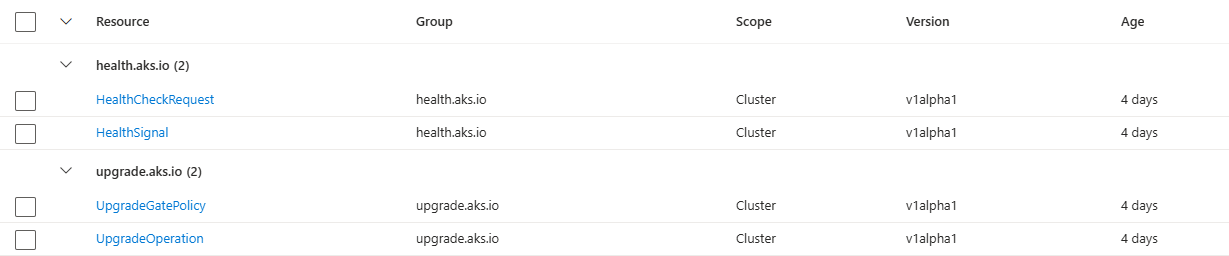
The schemas are the closest thing to documentation right now, so kubectl explain is your friend.
|
1 2 3 4 |
kubectl explain upgradegatepolicy.spec --recursive kubectl explain healthcheckrequest.spec --recursive kubectl explain healthsignal.spec --recursive kubectl explain healthsignal.status --recursive |
They spell out how the pieces fit together. A monitoring provider watches for a HealthCheckRequest, creates a HealthSignal that points back to it with an owner reference, then writes its verdict to the signal’s status.
The bit that’s easy to miss is the provider label. A custom provider’s signal needs a health.aks.io/provider label that matches the provider in its policy. Creating any old signal won’t do anything.
The schema also explains how verdicts are treated. For a node, True lets the upgrade carry on, False stops it, and Unknown or no answer waits until the provider’s deadline and then stops it. At pool and cluster level, Unknown doesn’t hold things up, but an explicit False still can.
I tested the node-level unhealthy and no-answer cases below. The rest comes straight from the schema.
Testing the gate with a fake provider
I didn’t want to break DNS or networking just to make a node look unhealthy. Instead, I wrote a small synthetic provider that could answer healthy, unhealthy or not at all.
It doesn’t measure anything real, so a synthetic True says nothing about your workloads. It just let me check whether AKS actually acts on a provider’s verdict.
This is the policy I used for the later user pool tests.
|
1 2 3 4 5 6 7 8 9 10 11 12 |
apiVersion: upgrade.aks.io/v1alpha1 kind: UpgradeGatePolicy metadata: name: pixelrobots-synthetic-lab spec: provider: synthetic-lab.pixelrobots.co.uk rules: - target: scope: NodePool name: healthtest nodeTimeout: 90s onFailure: Abort |
It registers my provider for the healthtest pool and gives it 90 seconds to respond. The policy doesn’t install anything, though. Apply it without something answering requests and your upgrade will time out.
My responder ran locally against an isolated lab kubeconfig. It watched for requests, created owner-linked signals with its provider label and wrote a Ready condition to the status. In unhealthy mode it returned False for nodes. In silent mode it didn’t create a signal at all.
Whilst an upgrade runs, these commands show what’s going on.
|
1 2 3 |
kubectl get upgradeoperations.upgrade.aks.io kubectl get healthcheckrequests.health.aks.io kubectl get healthsignals.health.aks.io -o yaml |
Requests and signals appear during the rollout and get cleaned up afterwards. So an empty list before an upgrade doesn’t tell you much.
An unhealthy node stopped the upgrade
For the first test, I kicked off a real pool upgrade to Kubernetes 1.37.1 and had the provider return Ready=False for the surge node. The operation failed with UpgradeAbortAtUpgradeGate, and the error included this.
|
1 2 3 |
Health signal indicates aks-systempool-10013515-vmss000003 is unhealthy: Ready (Reason: SyntheticUnhealthy) - Synthetic upgrade-gate protocol test; not an actual workload health assessment. |
I liked that AKS quoted my condition and reason back. This wasn’t a random upgrade failure that happened to line up with the test. The gate acted on the verdict.
Keep in mind that an abort isn’t a rollback. It stops progress, but it doesn’t promise to undo nodes that have already been upgraded.
No answer stopped it too
Next, I set the provider to stay silent and tried again. AKS failed the upgrade, this time naming my provider and its deadline.
|
1 2 3 |
Health check timeout: provider "synthetic-lab.pixelrobots.co.uk" did not report a healthy verdict for aks-systempool-10013515-vmss000004 within 1m30s |
So the 90-second nodeTimeout works. It’s how long AKS waits for that provider’s verdict on a node, not a limit on the whole upgrade.
What caught me out
My first healthy attempt failed, even though my provider was happily returning True.
AKS aborted on a reimaged node because the built-in ClusterHealthMonitor hadn’t reported healthy within one minute. A retry hit exactly the same thing.
That corrected an assumption I’d made. There weren’t any policies or signals in the cluster before my first upgrade, but the built-in monitor still took part. Don’t assume gating is inactive just because those lists are empty.
To rule out the system pool, I added a separate one-node user pool and upgraded it from 1.37.0 to 1.37.1. The system nodes and monitoring deployment were left alone, the baseline node checks passed and the monitor stayed on its original node throughout.
It still hit the one-minute timeout.
The timings told the story. The request for the reimaged node appeared at about 10:10:17 UTC. Its boot health check started at 10:10:55, and the checker container didn’t start until 10:11:27. That’s already past the one-minute window.
The checks did report healthy afterwards, but by then the upgrade had failed. It looks like a timing issue between the gate and on-demand health checking, although I can’t confirm the root cause from the outside.
Trying a longer timeout
The policy schema has a nodeTimeout field, capped at five minutes, but there’s no matching timeout in the ARM gate settings. So I tried a policy naming the built-in ClusterHealthMonitor provider, scoped to the test pool only. Treat this as an experiment, not a proven fix.
|
1 2 3 4 5 6 7 8 9 10 11 12 |
apiVersion: upgrade.aks.io/v1alpha1 kind: UpgradeGatePolicy metadata: name: pixelrobots-builtin-timeout-experiment spec: provider: ClusterHealthMonitor rules: - target: scope: NodePool name: healthtest nodeTimeout: 5m onFailure: Abort |
Kubernetes accepted it without complaint. I recreated the test pool on 1.37.0, waited for its baseline health checks to pass and ran another real upgrade.
|
1 2 3 4 5 6 |
az aks nodepool upgrade ` --resource-group $ResourceGroup ` --cluster-name $Cluster ` --name healthtest ` --kubernetes-version 1.37.1 ` --yes |
This time it returned Succeeded. The pool reached 1.37.1, the gate was still enabled, both monitors were still on and there was no force upgrade involved.
Here’s the portal afterwards, with both pools running and their expected node counts.

That shows where the lab ended up, not the upgrade history.
Now the honest bit. The native node checks finished within 60 seconds on this run. So the healthy upgrade worked with the five-minute policy in place, but I can’t say the policy changed the built-in deadline or caused the success. To prove that, I’d need a timeout error showing the new value, and I haven’t got that yet.
Wrapping up
Health-aware upgrade gates look like a really useful addition to AKS. My fake provider stopped an upgrade with an unhealthy answer and with no answer at all, and a real healthy patch upgrade got through in the end.
Here’s where the lab landed.
| Test | Observed result |
|---|---|
| Custom node signal reports unhealthy | Upgrade aborted and cited SyntheticUnhealthy |
| Custom provider returns no verdict | Upgrade aborted with the configured 90-second timeout |
| Healthy responses with the original setup | Built-in monitor timed out on reimaged nodes |
| Separate user pool with the original timeout | Same built-in timeout, without moving the monitoring deployment |
| Healthy user-pool upgrade with the experimental policy present | Real 1.37.0 to 1.37.1 rollout succeeded |
| Five-minute override for the built-in provider | Not proven |
A same-version reconcile also got a failed pool back to Succeeded along the way. I didn’t count that as a healthy test, as it wasn’t a fresh gated rollout.
If you’re going to try it, use a throwaway cluster and keep a close eye on the built-in monitor timings. That one-minute window is what caught me out. Also, don’t apply a custom provider policy until something’s actually answering it, or you’ll end up blocking your own upgrades.
I’d like to see the official docs cover provider registration, the built-in monitor deadlines and how to recover after an aborted upgrade. A supported way to tune that built-in timeout would be great too.
Until then, the CLI PR, API definitions and installed CRDs are the best places to dig in. Keep an eye on the AKS Docs Tracker for the official docs when they land.
If you try it, let me know how it goes.


0 Comments