






Azure Firewall for Containers landed around Ignite, and it caught my eye straight away. It lets you write Azure Firewall egress rules for AKS workloads using Kubernetes labels instead of IP addresses. I found the quickstart on Microsoft Learn and deployed it to see how those rules work in practice.
The label-based rules worked in my test, but cleanup caught me out when the controller-managed policy couldn't be deleted. It's in public preview, so keep it to an isolated test environment for now.
Why Azure Firewall for Containers matters
If you've ever locked down AKS egress with Azure Firewall, you know the friction. The cluster team owns the workloads and the network team owns the firewall. Every new "this pod needs to reach that endpoint" request becomes a ticket, and pods don't have stable IPs to write rules against anyway.
Azure Firewall for Containers moves that intent into the cluster. You write a SecurityPolicy custom resource that selects pods by label, attach it to a firewall with a SecurityPolicyAttachment, and a controller translates it into Azure Firewall policy. The rule lives next to the workload it protects.
What you need before you start
The deployment guide on Microsoft Learn has the full list. These are the ones worth checking before you spend any time on it.
- A subscription with preview access in a supported region. The preview runs in Azure public cloud only, in Central US EUAP, East US 2 EUAP, West Central US, East Asia, UK South and Central US. Check the docs before choosing one, as preview availability can change.
- An AKS cluster on Azure CNI with pod IPs from your own virtual network. Azure CNI Overlay isn't supported, so make sure
networkPluginModeisn't set tooverlaybefore you go any further. The OIDC issuer and workload identity need to be turned on too, because the controller signs in with a user-assigned managed identity. - A plan for egress. The cluster needs outbound access whilst you install the controller, and pod traffic has to reach the firewall with the pod IP as its source. On the first attachment, the controller creates
kube-system/azure-ip-masq-agent-configto turn off pod SNAT, so check that any customip-masq-agentconfiguration won't masquerade that traffic. - The AKS required egress on your own firewall or base policy. If you bring an existing firewall or your own base policy, allow the AKS required outbound traffic and HTTPS on port 443 to
*.afc.azure.com. The controller-created base policy already includes these rules. - The right permissions. You need to administer the cluster, install CRDs, create the networking resources and assign a role to the controller's identity. That last one needs a role such as Role Based Access Control Administrator.
- The usual tools. You'll need the Azure CLI, kubectl and Helm. The docs use Bash throughout and suggest Azure Cloud Shell in Bash mode.
Preview limitations to plan for
This is a public preview, and Microsoft recommends an isolated evaluation environment. I wouldn't put it in production or assume the setup and behaviour won't change. These are the limitations the docs list, grouped by what they mean for you.
- It's one cluster to one firewall. Each AKS cluster supports only one
SecurityPolicyAttachmentand one Azure Firewall, and each firewall supports only one cluster. You can't share a hub firewall across several clusters with this yet. - Only pod egress is inspected, and only over IPv4. Ingress and east-west traffic aren't covered. Host-network pods use the node IP, so you can't select them individually.
- Premium is the default, and Standard loses features. Managed firewall and Firewall Policy deployments use the Premium SKU, so budget for it and tear test environments down promptly. You can use an existing Standard firewall and policy for label-based rules, but IDPS, TLS inspection and URL filtering aren't available.
- Existing firewalls need a Firewall Policy. Classic rules aren't supported, and a base policy can't already inherit from another base policy.
- Kubernetes owns the child policy. Don't change the controller-managed child policy in the Azure Portal. You can still change the parent policy there, and the controller won't undo those changes. I cover what that looks like further down.
- The APIs and controller will move. The CRDs are
v1alpha1and can change before general availability. The docs pin the controller chart to20261109.1, so don't assume a newer chart works with this preview. - The quickstart template is for a new cluster. It creates a fresh AKS cluster and routes all outbound traffic from the AKS subnet through the firewall. For an existing cluster, follow the deployment guide instead. Changing an AKS subnet's route table or outbound type can interrupt connectivity, so record your current configuration and have a rollback plan first.
- The one-click install has a storage-policy caveat. Setting
deployControllerAndSampletotrueruns a deployment script that needs a storage account with shared key access. If policy denies shared-key access, that step fails. Deploy with the default setting and install the controller manually instead.
Deploying it
There are two ways in. The quickstart uses an ARM template to build a fresh environment, and the deployment guide walks through the same setup by hand, including on an existing cluster.
The guide also covers the firewall itself. You either let the controller create one from an AzureFirewall custom resource, or point the attachment at an existing firewall's resource ID. Unless you reference your own policy with firewallPolicyReference, the controller creates the base policy for you. I went with the quickstart because it was the fastest route to a working test.
The quickstart uses an Azure Resource Manager (ARM) template that creates the lot. That's a virtual network, an AKS cluster with Azure CNI, OIDC issuer and workload identity, an Azure Firewall Premium with a base policy, a route table sending the AKS subnet's 0.0.0.0/0 through the firewall, and a managed identity for the controller. Per the docs, you need a preview region (UK South is one of them), the Microsoft.ContainerService and Microsoft.Network providers registered, and permission to create role assignments.
I used a temporary resource group in UK South and deployed the template with its defaults apart from one parameter. The default node size is Standard_DS3_v2, and my subscription wouldn't allow it in that region. Preflight validation told me so, and the error listed what was available. I swapped in Standard_D2s_v5 and tried again.
The command below deploys the quickstart template and overrides the node size.
|
1 2 3 4 |
az deployment group create \ --resource-group <resource-group> \ --template-uri https://raw.githubusercontent.com/Azure/azure-quickstart-templates/master/quickstarts/microsoft.network/azurefirewall-for-containers-aks/azuredeploy.json \ --parameters nodeVmSize=Standard_D2s_v5 |
That finished in about eight minutes for me, which is quicker than the roughly 15 the sample page suggests. If your default size is blocked, check the VM sizes available to you first so you don't lose time on a failed preflight.
Installing the controller and attaching a policy
By default the template only deploys Azure resources. There's an optional deployControllerAndSample parameter that runs a deployment script to do the rest, but it needs a storage account with shared key access, so it fails if Azure Policy denies that. I took the manual route from the sample page, which I'd recommend anyway because you see each piece land.
First the controller goes in through Helm, using the controller identity the template created.
|
1 2 3 |
helm install azfw-controller oci://mcr.microsoft.com/firewall/charts/azurefirewall-controller \ --namespace firewall-namespace --create-namespace --version 20261109.1 \ --set "azfwController.podIdentity.clientID=$CLIENT_ID" --wait |
Two controller pods came up healthy. Note the pinned chart version, which is what the docs specify for this preview, so don't expect to track latest.
Next comes the policy itself. This SecurityPolicy allows pods labelled role: developer to reach HTTPS on *.microsoft.com and *.google.com, and the attachment ties it to the firewall and the AKS subnet.
|
1 2 3 4 5 6 7 8 9 10 11 12 13 14 15 16 17 18 19 20 21 22 23 24 25 26 27 28 29 30 31 32 33 34 35 36 |
apiVersion: firewall.networking.azure.io/v1alpha1 kind: SecurityPolicy metadata: name: example-securitypolicy-rules namespace: default spec: applicationRuleCollections: - name: test-application-rules refs: - podSelector: matchLabels: role: developer action: Allow egress: - name: allow-test-destinations toPortProtocol: - protocolType: HTTPS port: 443 to: - fqdn: - "*.microsoft.com" - "*.google.com" --- apiVersion: firewall.networking.azure.io/v1alpha1 kind: SecurityPolicyAttachment metadata: name: example-attachment namespace: default spec: securityPolicyRefs: - name: example-securitypolicy-rules namespace: default firewallRef: id: <firewall-resource-id> aksWorkloadSubnets: - <aks-subnet-resource-id> |
Apply that with kubectl apply, then watch the attachment's Deployment condition. The docs say the first policy takes about five minutes. Mine took closer to ten before it reported Ready, so be patient and don't assume it's stuck.
If you build this by hand, one ordering rule from the deployment guide really matters. Route the AKS subnet through the firewall before you attach a policy. Attaching turns off pod SNAT so the firewall sees pod IPs, and without the route your pods can lose outbound access straight away. The quickstart template creates that route for you, which is why I didn't hit it.
Does it actually block things?
I created two pods, one labelled role=developer and one labelled role=other, then curled from each. This is the test from the sample page.
|
1 2 3 |
kubectl exec developer-pod -- curl -sS -o /dev/null -w '%{http_code}\n' --max-time 30 https://www.microsoft.com kubectl exec developer-pod -- curl -sS -o /dev/null -w '%{http_code}\n' --max-time 30 https://www.bing.com kubectl exec other-pod -- curl -sS -o /dev/null -w '%{http_code}\n' --max-time 30 https://www.microsoft.com |
The labelled pod got a 200 from www.microsoft.com. The same pod failed to reach www.bing.com, and the unlabelled pod failed to reach www.microsoft.com. Both denied requests came back with a TLS connect error (curl exit code 35), exactly as the docs describe. So the rule is scoped by both destination and pod label, which is the whole point.
The deployment guide adds two timing details I didn't test. Rule and label changes can take a few minutes to reach the firewall even after the attachment reports Ready, so retry before you start troubleshooting. A brand new pod with a matching label, though, is allowed within seconds without an Azure Resource Manager deployment.
Network rules and application rules
My test only used an application rule, but a SecurityPolicy can hold two kinds of rule collection. Each one selects pods, namespaces or both through refs, and has an action of Allow or Deny.
| Collection | What it can match |
|---|---|
applicationRuleCollections | HTTP, HTTPS or MSSQL, ports, FQDNs, FQDN tags, URLs and web categories |
networkRuleCollections | TCP, UDP, ICMP or any protocol, ports, IP addresses, IP groups, service tags and FQDNs |
I'd reach for application rules for web traffic where the hostname or URL matters, and network rules for everything else, like database ports or traffic to a service tag.
Network rules have one catch. An FQDN destination in a network rule needs DNS proxy turned on in the policy, and your pods have to resolve that name through the firewall. Otherwise the pod and the firewall can resolve different IP addresses and the rule won't match. The docs suggest either pointing the virtual network's DNS at the firewall's private IP, which affects every workload in that network and needs a node restart, or forwarding CoreDNS to the firewall.
This spec fragment from the docs turns on DNS proxy and lets developer pods reach google.com on TCP 443.
|
1 2 3 4 5 6 7 8 9 10 11 12 13 14 15 16 17 |
dns: dnsProxy: Enabled networkRuleCollections: - name: example-network-rules refs: - podSelector: matchLabels: role: developer action: Allow egress: - name: allow-google toPortProtocol: - protocolType: TCP port: 443 to: - fqdn: - google.com |
Application rules don't need any of that DNS work. They can also use tlsInspection: Enabled, as long as you're on Premium and have the certificate configuration and client trust in place.
Advanced policy settings
Beyond allow and deny rules, a SecurityPolicy can set four firewall-wide features. I haven't tried these, so this section is based on the deployment guide.
| Setting | Options |
|---|---|
| IDPS | Disabled, AlertOnly or AlertAndDeny, plus signature overrides and private ranges |
| Threat intelligence | Disabled, AlertOnly or AlertAndDeny, plus allowed CIDRs and FQDNs |
| DNS | DNS proxy on or off, with optional custom name servers, otherwise Azure DNS |
| SNAT | Always, Never or Exclude, with exclusions only allowed for Exclude |
These settings are policy-wide. If two policies on the same attachment set the same one, the first policy in securityPolicyRefs wins, so the order of that list matters.
Here's the IDPS example from the docs. The ruleID has to be a number, not a quoted string, and 2000015 is only an example signature.
|
1 2 3 4 5 6 7 8 9 |
idps: mode: AlertAndDeny ruleOverrides: - ruleID: 2000015 mode: AlertOnly privateIPRanges: cidrs: - 10.0.0.0/8 - 192.168.0.0/16 |
Don't add a bypassList to the controller-managed child policy, because Azure rejects it. If you need an IDPS bypass, put it in a base policy you own. IDPS, TLS inspection and URL filtering all need Premium, so they aren't available if you bring a Standard firewall.
What the controller does to your firewall
This is the part I found most interesting, and it isn't something the quickstart spells out. The controller doesn't write into the policy the template created. It creates a second, child firewall policy with a generated name, inherits from the template's base policy, and points the firewall at that child.
I checked the policy through the REST API and it reports afcManaged as true. The Azure Portal then treats it as read-only.

The banner says updates aren't permitted from the portal. That has an operational consequence worth planning for. Your Kubernetes resources become the source of truth, and nobody should be hand-editing that policy. Anything that should apply to every cluster, like the AKS required egress, belongs in the base policy.
It also caught me out at cleanup. I tried to delete the resource group, but the deletion didn't complete. The cluster, firewall and public IPs were removed, whilst the two firewall policies and the group remained. The child policy rejected my CLI delete because it's managed by Azure Firewall for Containers, and the base policy can't be deleted whilst the child inherits from it.
The deployment guide has a cleanup order that I didn't follow. The key is to keep the controller running until it has removed what it manages.
- Delete the test pods.
- Delete the attachment, wait for it to go, then give pod SNAT about 90 seconds to come back.
- Restore the subnet's original routing.
- Delete the
SecurityPolicy. - If the controller created the firewall, delete the
AzureFirewallresource. That can take 20 to 30 minutes. - Uninstall the controller.
The docs warn that uninstalling the controller first can stop deletion completing. Deleting the resource group skipped all of that, and I suspect that's why the policies were left behind. I haven't retested with this order, so I can't confirm it avoids the problem.
The application rules view shows how the two layers combine.
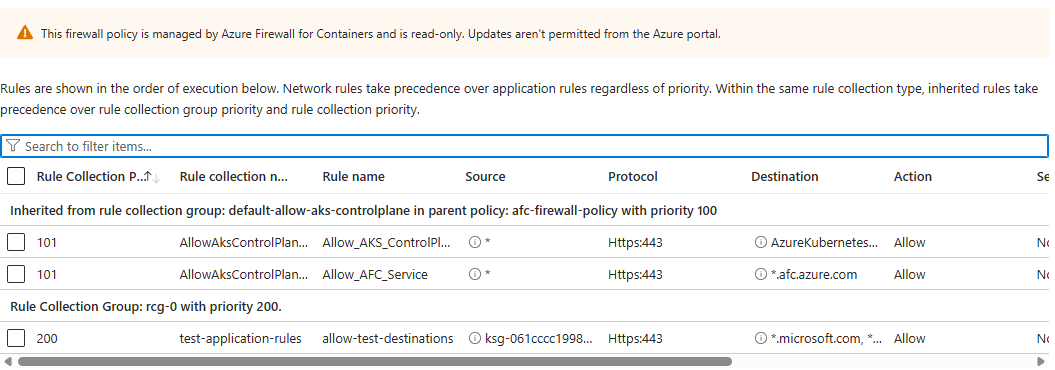
The inherited rules from the base policy allow the AzureKubernetesService FQDN tag and *.afc.azure.com. Below them sits the rule generated from my SecurityPolicy, with the same destinations I wrote. The source isn't an IP address. It's a generated selector group, which is how the pod label ends up on the firewall.
Troubleshooting
I didn't need to troubleshoot much beyond waiting, but the deployment guide has a useful checklist. Start with the controller logs and the status conditions on each custom resource, which is where the controller reports errors.
|
1 2 3 |
kubectl get pods --namespace firewall-namespace kubectl logs --namespace firewall-namespace -l app=azurefirewall-controller kubectl get azurefirewall,securitypolicy,securitypolicyattachment -A -o yaml |
These are the symptoms from the docs that I'd expect people to hit first.
| Symptom | What to check |
|---|---|
| HTTP 401 authentication errors | The OIDC issuer, the federated credential's subject and namespace, and workload identity |
| HTTP 403 authorisation errors | The controller identity's role assignments and their scopes |
| Pods lose internet access after attaching | The AKS subnet's 0.0.0.0/0 route to the firewall, and the AKS required and *.afc.azure.com egress rules |
| Labelled pods are still denied | Wait a few minutes, then check the region, that you're not on CNI Overlay, kube-system/azure-ip-masq-agent-config, and that the firewall sees pod IPs rather than node IPs |
| An FQDN network rule is rejected or doesn't match | DNS proxy is enabled, and pods resolve the name through the firewall |
A policy stays Programmed=False | Fix the configuration and change the policy's spec before reapplying it |
Deleting a SecurityPolicy hangs | Remove it from the attachment's securityPolicyRefs first |
That Programmed=False behaviour is worth understanding. If Azure rejects a policy version, the controller keeps the last good version, or leaves the policy out if there isn't one. It won't retry just because you fixed the underlying problem, so you have to change the spec to trigger it again.
Wrapping up
Azure Firewall for Containers gives platform teams a way to express AKS egress rules as Kubernetes resources, scoped by pod label, and it did exactly that in my test. The deployment was smooth once I got past the VM size, and the base policy and child policy split makes sense. What I'd want to see next is ingress and east-west traffic, and one firewall shared across several clusters.
If you try it, let me know how it goes.

0 Comments