






Microsoft recently released a public preview of cert-manager as an Azure Arc Kubernetes extension. The docs focus entirely on Arc-enabled clusters, which makes sense given it shipped under the Arc umbrella. But I wanted to know whether it would work on a regular AKS cluster, and the short answer is yes, it does. The only change needed is a single flag.
Unsupported disclaimer: This is not supported by Microsoft. The extension is documented and tested only for Arc-enabled Kubernetes clusters. Running it on standard AKS is entirely at your own risk. I am sharing this because it works, it is interesting, and I genuinely hope Microsoft extends official support to managed AKS clusters in the future. Do not do this in production without understanding that caveat.
Why this is interesting
cert-manager is one of those tools that most Kubernetes teams end up running. You either install it yourself via Helm and own the upgrade and maintenance burden, or you find a managed route.
What Microsoft has built here is a properly packaged extension that bundles cert-manager and trust-manager together, handles upgrades, and gives you Microsoft enterprise support. The fact that the underlying AKS extension system is flexible enough to install it on a standard cluster is not really a surprise once you understand how extensions work in AKS. The cluster type flag is largely a targeting mechanism, and if you point it at managedClusters instead of connectedClusters, the extension installs just fine.
I tested this end-to-end with Gateway API support and a Let’s Encrypt production ClusterIssuer. It works. The certificate was issued, the Gateway picked it up, and the renewal cycle is running.
How to install the extension on a standard AKS cluster
You need the k8s-extension CLI extension installed and up to date. Run this first if you have not already:
|
1 2 |
az extension add --upgrade -n k8s-extension az extension add --upgrade -n connectedk8s |
Set your environment variables:
|
1 2 |
export CLUSTER_NAME="my-aks-cluster" export RESOURCE_GROUP="my-resource-group" |
The install command from the Microsoft docs uses --cluster-type connectedClusters. For a standard AKS cluster, change that to --cluster-type managedClusters. I also added the Gateway API config flag here since that is the focus of this post:
|
1 2 3 4 5 6 7 |
az k8s-extension create \ --resource-group ${RESOURCE_GROUP} \ --cluster-name ${CLUSTER_NAME} \ --cluster-type managedClusters \ --name "azure-cert-management" \ --extension-type "microsoft.certmanagement" \ --config cert-manager.config.enableGatewayAPI=true |
The CLI will confirm the extension installed successfully. The --config cert-manager.config.enableGatewayAPI=true flag enables cert-manager to watch Gateway API resources and trigger certificate creation from Gateway annotations. Without it, cert-manager ignores Gateway resources entirely.
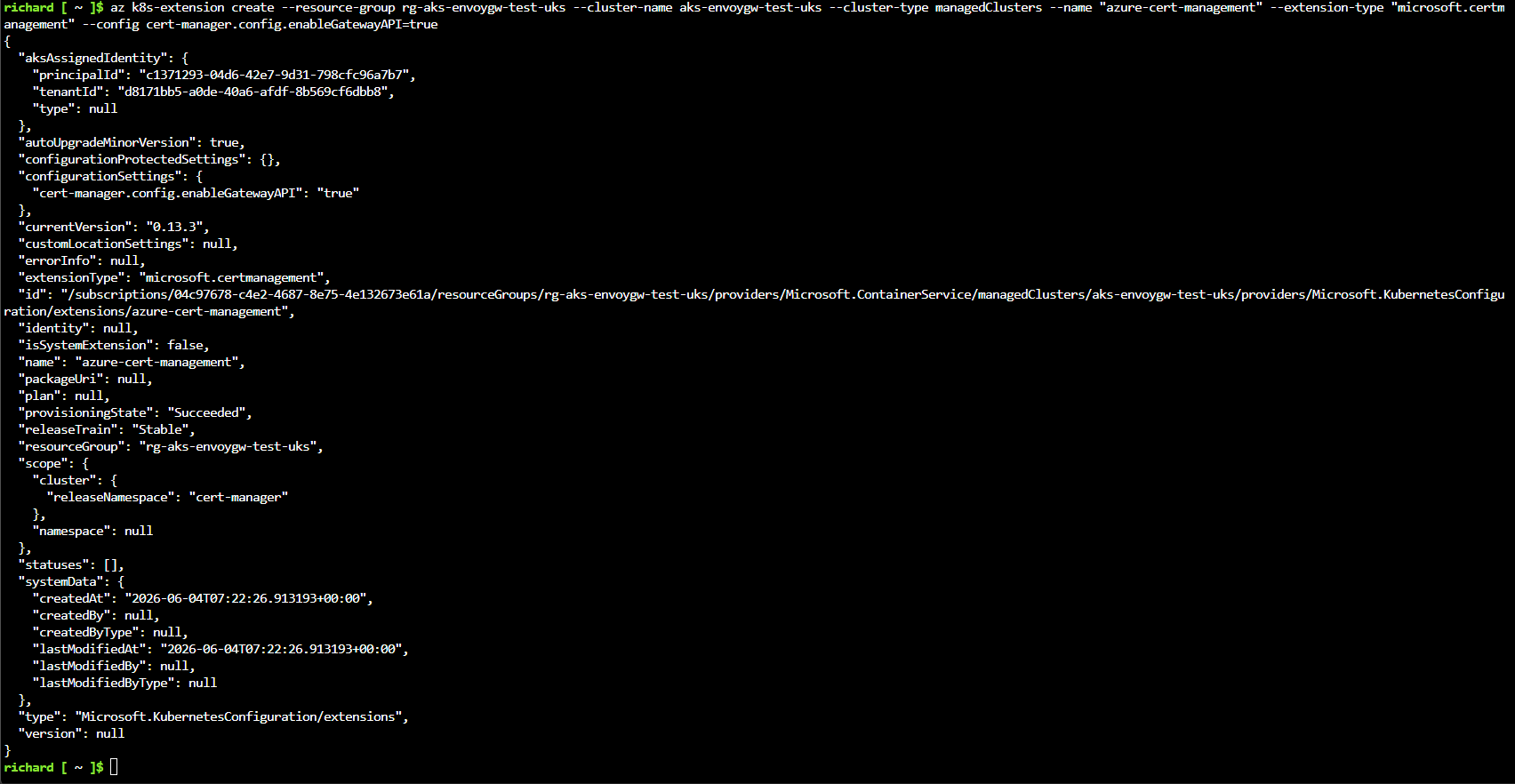
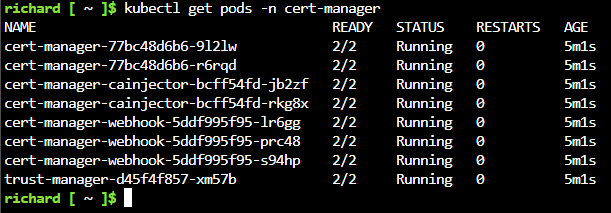
Once the extension is installed, check that the pods are running in the cert-manager namespace:
|
1 |
kubectl get pods -n cert-manager |
You should see the cert-manager controller, cert-manager webhook, cert-manager cainjector, and the trust-manager pod all in a Running state.
Install the Gateway API CRDs
The extension does not install the Gateway API CRDs for you. You need to do that separately before creating any Gateway resources. Install the standard channel CRDs if you have not got them already:
|
1 |
kubectl apply --server-side -f https://github.com/kubernetes-sigs/gateway-api/releases/download/v1.4.1/standard-install.yaml |
Verify the CRDs landed:
|
1 |
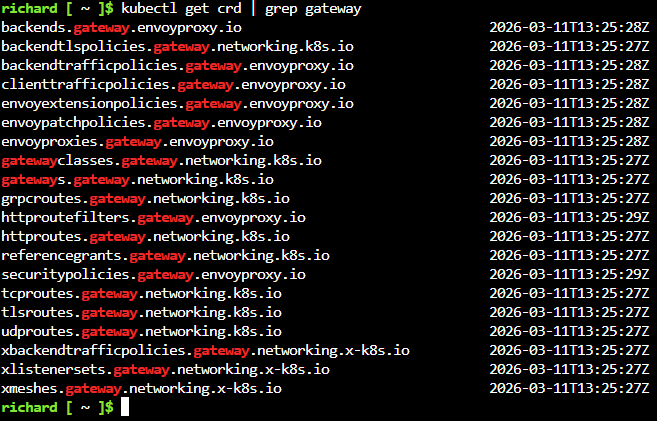
kubectl get crd | grep gateway |
You should see gateways.gateway.networking.k8s.io, httproutes.gateway.networking.k8s.io, and the other standard Gateway API resource types listed.
Create the Let’s Encrypt ClusterIssuer
This is where it gets practical. A self-signed issuer is fine for testing internal connectivity but it does not prove the integration is working end-to-end with a real CA. Let’s Encrypt is the obvious choice here since it is free and easy to validate.
For Gateway API HTTP01 challenges, cert-manager needs to create HTTPRoute resources to serve the ACME challenge. This requires the gatewayHTTPRoute solver rather than the standard ingress solver.
First, create the staging issuer so you can test without hitting Let’s Encrypt rate limits:
|
1 2 3 4 5 6 7 8 9 10 11 12 13 14 15 16 17 18 |
cat <<EOF | kubectl apply -f - apiVersion: cert-manager.io/v1 kind: ClusterIssuer metadata: name: letsencrypt-staging spec: acme: server: https://acme-staging-v02.api.letsencrypt.org/directory privateKeySecretRef: name: letsencrypt-staging-account-key solvers: - http01: gatewayHTTPRoute: parentRefs: - name: my-gateway namespace: default kind: Gateway EOF |
Now create the production issuer:
|
1 2 3 4 5 6 7 8 9 10 11 12 13 14 15 16 17 18 |
cat <<EOF | kubectl apply -f - apiVersion: cert-manager.io/v1 kind: ClusterIssuer metadata: name: letsencrypt-prod spec: acme: server: https://acme-v02.api.letsencrypt.org/directory privateKeySecretRef: name: letsencrypt-prod-account-key solvers: - http01: gatewayHTTPRoute: parentRefs: - name: my-gateway namespace: default kind: Gateway EOF |
Check the issuer registered correctly with Let’s Encrypt:
|
1 |
kubectl get clusterissuer -o wide |
The READY column should show True. If it shows False, describe the issuer to read the status message. The most common issue at this stage is the ACME account registration failing due to a network policy blocking outbound HTTPS from the cert-manager pod.

Create a Gateway with cert-manager annotations
Now create a Gateway resource. The annotation cert-manager.io/cluster-issuer is what tells cert-manager to watch this resource and create a certificate for it. The tls.certificateRefs name is the secret where cert-manager will store the issued certificate.
|
1 2 3 4 5 6 7 8 9 10 11 12 13 14 15 16 17 18 19 20 21 22 23 24 25 26 27 28 29 30 |
cat <<EOF | kubectl apply -f - apiVersion: gateway.networking.k8s.io/v1 kind: Gateway metadata: name: my-gateway namespace: default annotations: cert-manager.io/cluster-issuer: letsencrypt-prod spec: gatewayClassName: eg-public listeners: - name: https hostname: yourdomain.example.com port: 443 protocol: HTTPS allowedRoutes: namespaces: from: All tls: mode: Terminate certificateRefs: - name: my-gateway-tls - name: http hostname: yourdomain.example.com port: 80 protocol: HTTP allowedRoutes: namespaces: from: All EOF |
I am using Envoy Gateway here, and created a GatewayClass named eg-public for internet-facing traffic. If you are using a different controller, substitute the appropriate class name, for example cilium for Cilium Gateway API or nginx for NGINX Gateway Fabric. Replace yourdomain.example.com with a real DNS name that resolves to your cluster’s public IP.
The HTTP listener on port 80 is required for the HTTP01 ACME challenge. cert-manager will create a temporary HTTPRoute on port 80 to serve the challenge response, and Let’s Encrypt needs to be able to reach it.
Before the ACME challenge can succeed, you need a DNS record pointing your hostname at the Gateway’s load balancer IP. Once the Gateway is created, Envoy Gateway will provision a load balancer service. Get its external IP:
|
1 |
kubectl get svc -n envoy-gateway-system |
Look for the service with type LoadBalancer and copy the EXTERNAL-IP. Then add an A record in your DNS zone pointing yourdomain.example.com to that IP. If you are using Azure DNS:
|
1 2 3 4 5 |
az network dns record-set a add-record \ --resource-group <dns-resource-group> \ --zone-name <your-zone> \ --record-set-name <subdomain> \ --ipv4-address <EXTERNAL-IP> |
Wait for the record to propagate before cert-manager attempts the ACME challenge. You can check with dig yourdomain.example.com or nslookup yourdomain.example.com.
In production, managing DNS records by hand does not scale. external-dns watches Gateway and HTTPRoute resources and automatically creates and removes DNS records in your zone. It supports Azure DNS natively and is the standard approach for automating this in a production cluster.
Once the Gateway is created and DNS is resolving, cert-manager should pick it up within a few seconds. Watch for the certificate appearing:
|
1 |
kubectl get certificate -n default |
The READY column will initially show False while the ACME challenge is in progress. It usually transitions to True within 60 to 90 seconds on a first-time issuance.
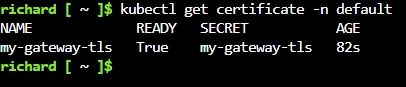
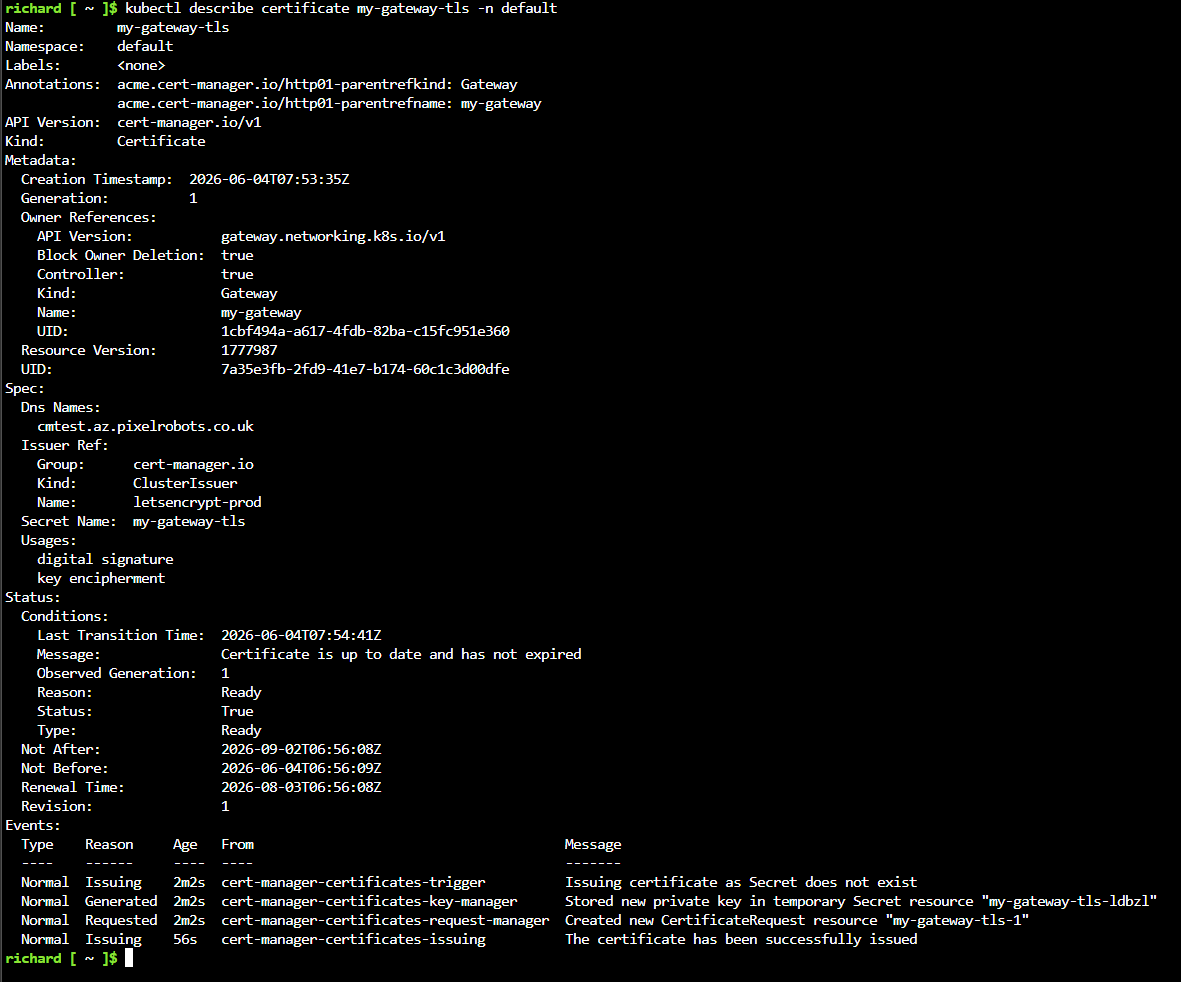
Describe the certificate to confirm it was issued by Let’s Encrypt and check the validity period:
|
1 |
kubectl describe certificate my-gateway-tls -n default |
Look for the Issuer field in the output confirming it came from Let’s Encrypt, and the Not After date confirming the 90-day validity period that Let’s Encrypt uses.
Deploy a test workload and verify end-to-end
With the certificate issued, deploy a simple nginx pod and service to give the Gateway something to route to:
|
1 2 3 4 5 6 7 8 9 10 11 12 13 14 15 16 17 18 19 20 21 22 23 24 25 26 27 28 29 30 31 32 33 34 |
cat <<EOF | kubectl apply -f - apiVersion: apps/v1 kind: Deployment metadata: name: test-app namespace: default spec: replicas: 1 selector: matchLabels: app: test-app template: metadata: labels: app: test-app spec: containers: - name: nginx image: nginx:stable ports: - containerPort: 80 --- apiVersion: v1 kind: Service metadata: name: test-app namespace: default spec: selector: app: test-app ports: - port: 80 targetPort: 80 EOF |
Now create an HTTPRoute that attaches to the Gateway and routes all traffic to the test service:
|
1 2 3 4 5 6 7 8 9 10 11 12 13 14 15 16 17 18 19 20 21 |
cat <<EOF | kubectl apply -f - apiVersion: gateway.networking.k8s.io/v1 kind: HTTPRoute metadata: name: test-app namespace: default spec: parentRefs: - name: my-gateway namespace: default hostnames: - yourdomain.example.com rules: - matches: - path: type: PathPrefix value: / backendRefs: - name: test-app port: 80 EOF |
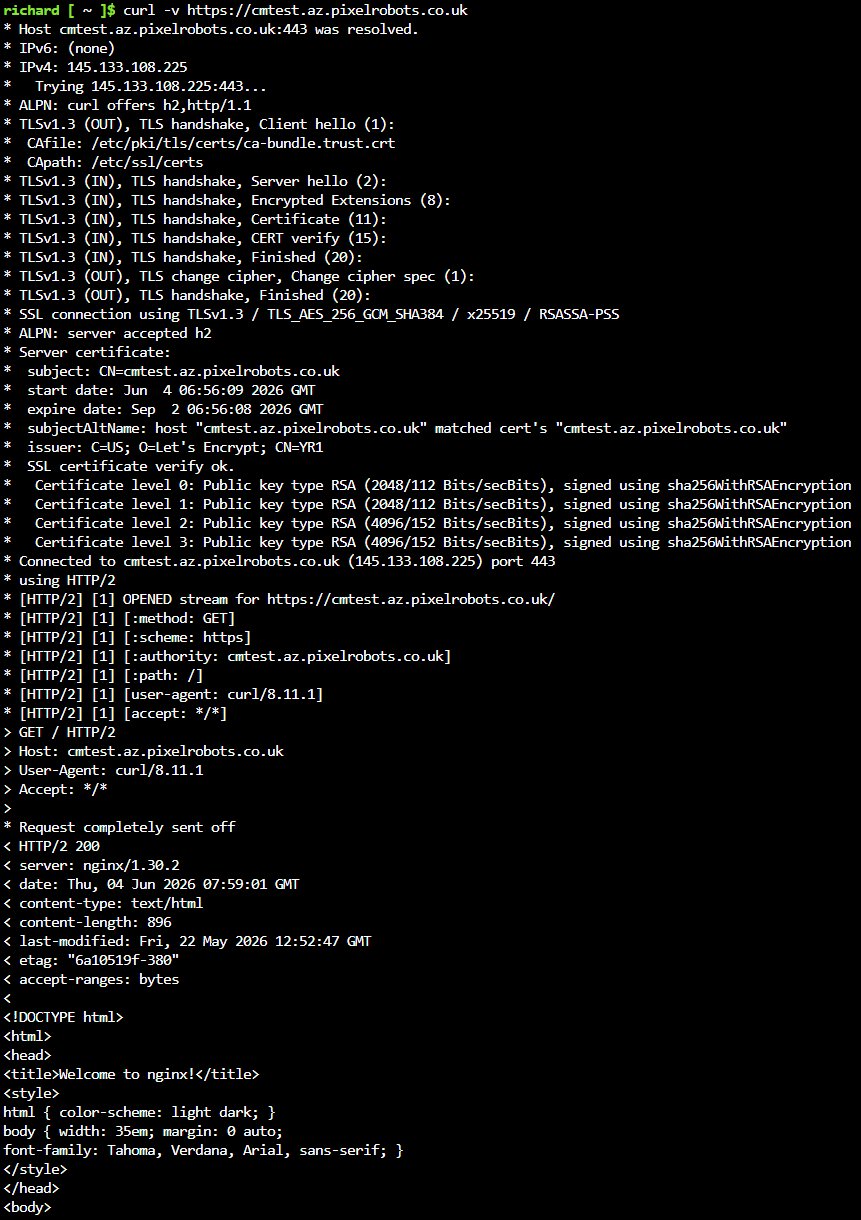
Once the pod is running, hit the HTTPS endpoint:
|
1 |
curl -v https://yourdomain.example.com |
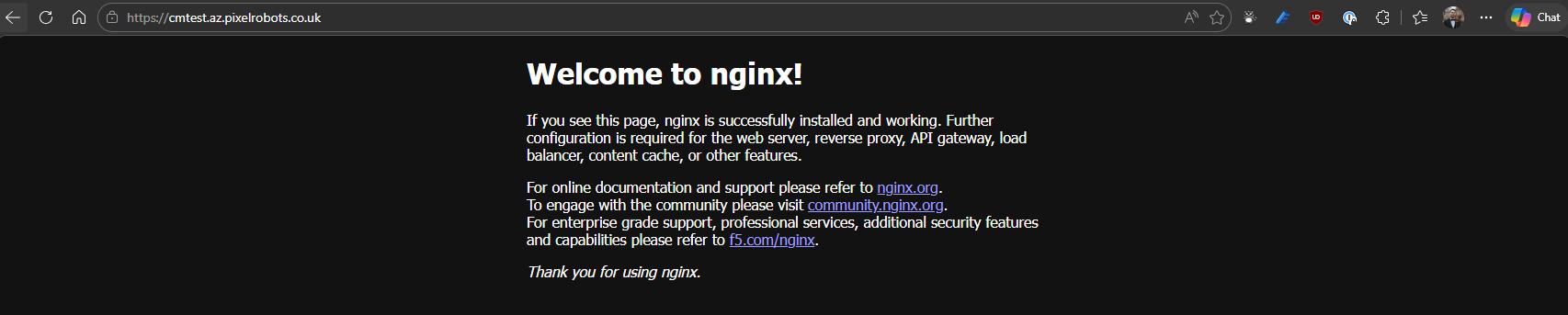
You should see the nginx welcome page returned over a valid TLS connection, with the certificate chain showing Let’s Encrypt as the issuer. If you are using the staging issuer the connection will succeed but the certificate will not be trusted by your browser, use the production issuer to get a trusted certificate.
What I noticed
The install itself was clean. The extension provisioned without errors, the pods came up healthy, and the trust-manager pod was present and running alongside the standard cert-manager components. Nothing surprising there.
The auto-upgrade behaviour is also worth noting. By default the extension will automatically apply minor version updates. If you want to control when upgrades happen, add --auto-upgrade-minor-version false to the install command.
The Gateway API HTTP01 solver is one area worth paying attention to. The gatewayHTTPRoute solver configuration requires you to reference a specific Gateway by name and namespace in the parentRefs section. This means your ClusterIssuer is coupled to a specific Gateway resource, which is a bit more rigid than the Ingress-based approach where the solver can be more generic. If you have multiple Gateways across namespaces, you will need to think about how you structure your solvers or use multiple ClusterIssuers.
One thing that did catch me out initially was the HTTP listener. I had only configured the HTTPS listener on my Gateway, and the challenge kept timing out. Let’s Encrypt needs to reach port 80 for HTTP01 challenges, so you need that listener even if you are redirecting HTTP to HTTPS in your routes. Once I added the HTTP listener the certificate issued immediately.
For production workloads, HTTP01 has meaningful limitations: it requires port 80 to be reachable from the internet, it does not work with private clusters or internal load balancers, and the Gateway coupling described above adds operational friction as you scale. The DNS01 solver avoids all of this. Instead of serving a challenge token over HTTP, cert-manager writes a TXT record to your DNS zone and Let’s Encrypt validates it there. This works with private clusters, wildcard certificates, and any ingress or gateway setup. With Azure DNS you can authenticate using Workload Identity, so there are no stored credentials. The trade-off is a slightly more involved setup, but for anything beyond a demo or dev cluster, DNS01 is the right default.
What this tells us about where AKS is heading
The fact that this works is more interesting than the fact that it exists. The AKS extension system is clearly capable of hosting general-purpose cluster tooling, not just Arc-specific add-ons. cert-manager is one of the most widely deployed pieces of infrastructure in the Kubernetes ecosystem, and having it available as a managed, auto-upgrading extension rather than a Helm chart you own is a meaningful operational improvement.
What the Arc extension demonstrates is that a properly packaged, general-purpose cert-manager installation is achievable on AKS. The two things I want to see from Microsoft to make this a real option are first, official support for `managedClusters` in the extension targeting, and second, native Workload Identity integration for the DNS01 solver so there are no stored credentials in the loop.
Until then, this is a useful reference point. The Gateway API integration works, the Let’s Encrypt issuance flow works end-to-end, and the operational model is cleaner than owning the Helm release yourself. If you are evaluating cert-manager options for AKS or building a cluster configuration you want to test before Microsoft ships something supported, this gives you a working baseline to build from.

0 Comments